Step-by-Step Guide: How to Reset a Xfinity Router

Are you facing connectivity issues with your Xfinity router and wondering how to reset it to resolve the problem? Resetting your router can often fix common network issues and restore it to its default settings. In this comprehensive guide, we'll walk you through the step-by-step process of resetting your Xfinity router to help you get back online quickly.
Related posts:
Understanding the Importance of Router Resets:
Before we delve into the reset process, it's essential to understand why resetting your router can be beneficial. Over time, routers can encounter various issues such as network congestion, firmware glitches, or configuration errors, which can affect their performance and connectivity. Resetting the router can help clear these issues and restore it to a stable state.
Step-by-Step Guide to Resetting Your Xfinity Router:
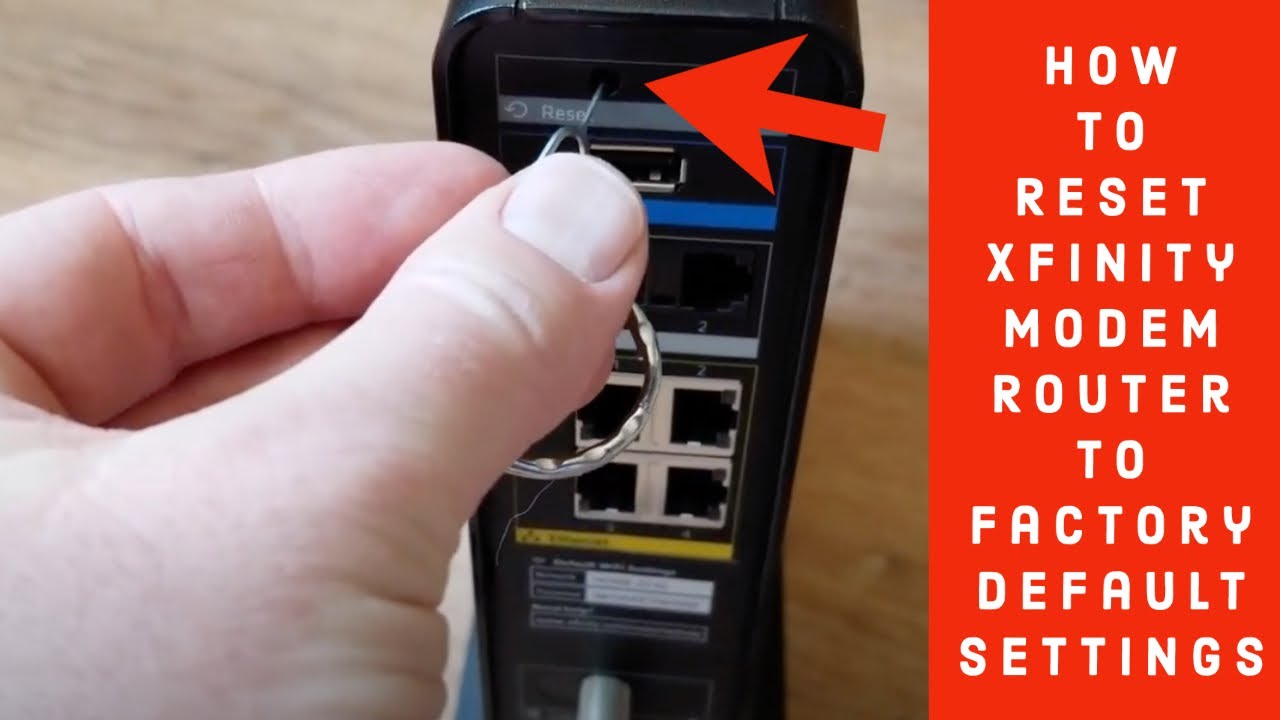
Locate the Reset Button: The first step is to locate the reset button on your Xfinity router. This button is typically small and recessed to prevent accidental resets. It is commonly found on the back or bottom panel of the router.
Prepare for Reset: Before proceeding with the reset, it's essential to backup any important configurations or settings from your router. Resetting your router will revert it to its factory default settings, erasing any customizations you may have made.
Perform the Reset: To reset your Xfinity router, you'll need a small, pointed object such as a paperclip or pin. Press and hold the reset button for about 10-15 seconds using the pointed object. Be sure to hold the button firmly until you see the router's lights flash or blink, indicating that the reset process has begun.
Wait for the Router to Restart: After releasing the reset button, allow your Xfinity router a few minutes to complete the reset process. During this time, the router will reboot and restore its default settings. You may notice the lights on the router flashing or cycling through various patterns, which is normal behavior during the restart.
Reconfigure Your Router (if necessary): Once the router has finished restarting, you'll need to reconfigure it with your preferred settings. This may include setting up a new Wi-Fi network name and password, configuring port forwarding rules, or adjusting other network settings as needed.
Test Your Connection: After reconfiguring your router, test your internet connection to ensure that everything is working correctly. Connect to your Wi-Fi network using the new credentials (if changed) and verify that you can access the internet without any issues.
Conclusion:
Resetting your Xfinity router is a straightforward process that can help resolve various connectivity issues and restore it to optimal performance. By following the step-by-step guide outlined above, you can reset your router with ease and get back online quickly. If you continue to experience problems with your router despite resetting it, consider contacting Xfinity customer support for further assistance.


